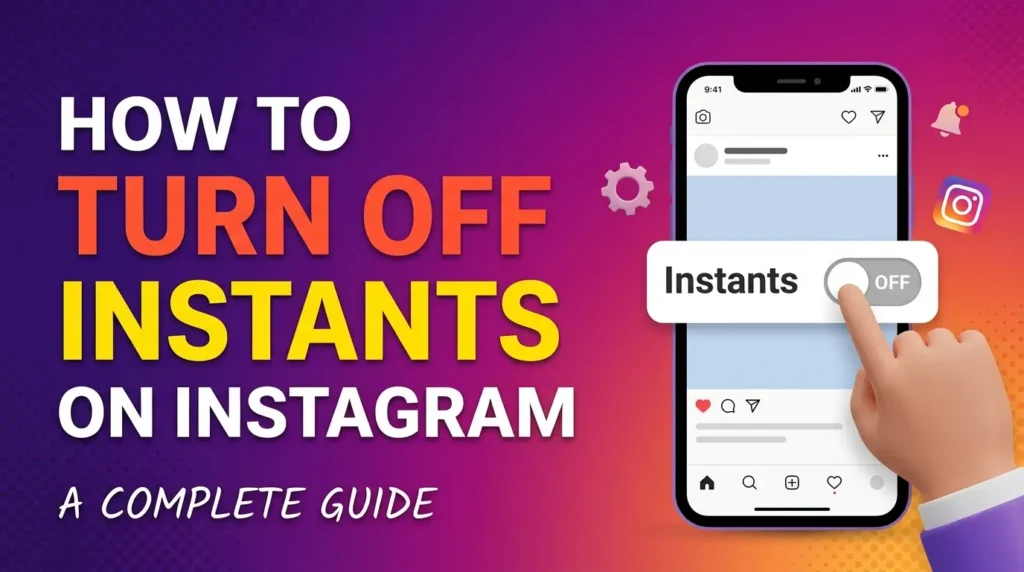
Instagram regularly introduces new features to make sharing photos and communicating with friends easier. However, not every feature is useful for every user. If a new option appears in your messages and makes your inbox feel crowded, you may want to remove it.
If you are wondering how to turn off Instants on Instagram, the good news is that Instagram provides a setting that allows you to hide Instants from your inbox. You can also manage related notifications, temporarily snooze the feature, and remove an Instant you accidentally shared.
The process is relatively simple once you know where to look. In this guide, you will learn how Instagram Instants work, how to hide them on Android and iPhone, how to manage notifications, and what to do if the setting is missing from your account.
What Are Instants on Instagram?
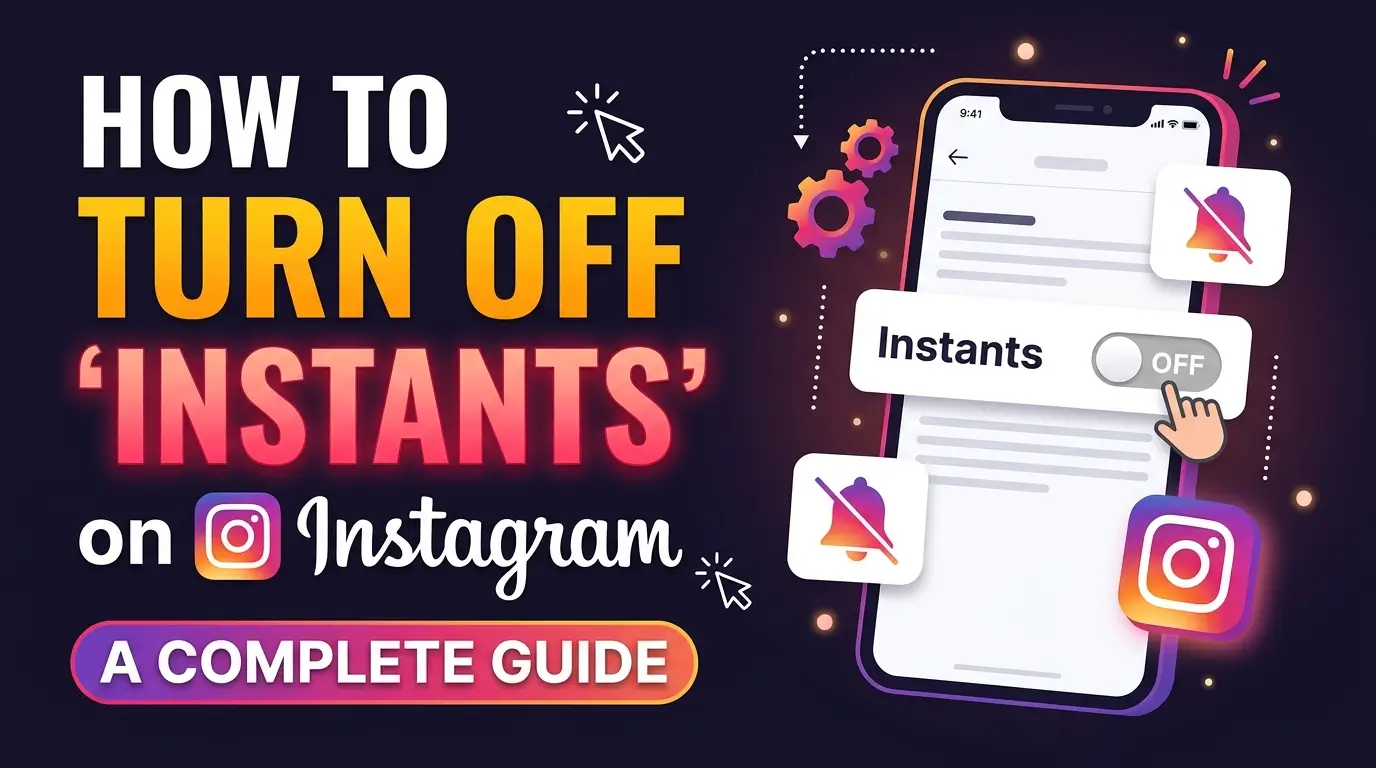
Instagram Instants is a photo-sharing feature designed for sharing quick, unedited moments with friends. Unlike a regular Instagram post or Story, an Instant is intended to capture something happening right now without requiring you to prepare or edit the image.
Instagram introduced the feature in May 2026. It allows users to take a photo directly through the Instants camera and share it with Close Friends or mutual followers.
According to Instagram’s announcement, Instants disappear after being viewed and cannot be viewed after 24 hours. The feature is designed to make sharing everyday moments feel more spontaneous.
Some of its main characteristics include:
- Quick photo sharing: Capture a photo directly through the Instants camera.
- Disappearing photos: Shared images disappear after they have been viewed and expire after 24 hours.
- Limited audience: Share with eligible Close Friends or mutual followers.
- Minimal editing: The feature is designed for immediate sharing rather than preparing a polished image.
- Private interactions: Friends can react to and reply to shared Instants.
Although some people enjoy this style of communication, others prefer traditional direct messages and Stories. If you do not want to use Instants, hiding the feature can help make your Instagram inbox less distracting.
How to Turn Off Instants on Instagram
The easiest way to remove Instants from your Instagram inbox is to enable the setting called Hide Instants in Inbox.
Follow these steps carefully.
Step 1: Open Instagram
Open the Instagram app on your Android phone or iPhone.
Make sure you are signed in to the account where you want to hide Instants. If you use multiple Instagram accounts, the setting may need to be changed separately for each account.
Step 2: Go to Your Profile
Tap your profile picture in the bottom-right corner of the screen.
Your profile page will open, showing your posts, followers, following list, and other account information.
Step 3: Open the Menu
Look at the top-right corner of your profile and tap the three horizontal lines.
This opens the menu containing Instagram’s settings and account controls.
Step 4: Find Content Preferences
Look for Content Preferences in the menu.
Depending on your app version, the menu layout or wording may differ slightly. If you cannot find the option immediately, use the search field in Settings, if available, and search for “Content Preferences.”
Step 5: Enable Hide Instants in Inbox
Inside Content Preferences, look for the option labeled Hide Instants in Inbox.
Turn on the toggle next to this setting.
When the option is enabled, Instagram indicates that you will not see new Instants in your inbox.
Step 6: Check Your Messages
Return to your Instagram inbox and see whether the Instants section has disappeared.
If the setting is available and working correctly, the Instants photo stack should no longer appear in the inbox.
Here is the complete path in one line:
Instagram Profile → Three-Line Menu → Content Preferences → Hide Instants in Inbox → Turn On
This is the main method to use if you want to remove Instants from your Instagram messages without deleting your account or disabling regular direct messages.
How to Turn Off Instants on Instagram on Android
Android users can follow the same general process to hide Instants.
- Open the Instagram app.
- Tap your profile picture.
- Tap the three-line menu in the upper-right corner.
- Open Content Preferences.
- Find Hide Instants in Inbox.
- Turn on the setting.
- Return to your messages and check the result.
The option may appear in a slightly different place depending on your Instagram version and account.
If you cannot find Content Preferences, look for the Settings section or use the settings search feature.
You can also check the Google Play Store to see whether an Instagram update is available. Updating may help if your app is outdated, although it does not guarantee that every account will have the same options.
How to Turn Off Instants on Instagram on iPhone
The process on an iPhone is almost identical to the Android method.
Follow these instructions:
- Open Instagram on your iPhone.
- Tap your profile picture at the bottom of the screen.
- Select the three-line menu in the top-right corner.
- Scroll to Content Preferences.
- Find Hide Instants in Inbox.
- Enable the setting.
- Return to your direct messages.
Once enabled, the setting should hide the Instants section from your inbox.
If you use Instagram on both an iPhone and another device, check the feature on the device you normally use. If the change does not appear immediately, close and reopen the app and check your settings again.
You do not need to delete Instagram, deactivate your account, or change your profile to hide this feature.
How to Stop Instagram Instants Notifications
One important detail is that hiding Instants in your inbox and managing their notifications are not necessarily the same thing.
You may hide the Instants section and still receive notifications related to the feature. If you want fewer interruptions, check your notification settings separately.
Steps to Manage Instants Notifications
- Open Instagram and go to your profile.
- Tap the three-line menu.
- Open Settings.
- Select Notifications.
- Look for the Instants section, if available.
- Open its notification options and turn off the available alerts you do not want.
The exact options may vary by account and app version.
If Instagram provides individual controls, review each relevant notification category rather than assuming one switch controls everything.
What If There Is No Instants Notification Option?
If you cannot find an Instants-specific notification setting, you can consider muting Instagram notifications more broadly.
On an iPhone, open the device’s Settings app, select Notifications, find Instagram, and adjust the notification permissions.
On Android, open Settings, select Apps, choose Instagram, and open Notifications. The names of these menus vary by manufacturer and Android version.
Be aware that disabling Instagram notifications at the device level can also stop alerts for regular messages, comments, likes, and other activity.
If you still want to receive normal direct-message alerts, avoid turning off every Instagram notification unless that is your intention.
How to Temporarily Hide Instants Without Changing Settings
You may not want to hide Instants permanently. Perhaps you only want to remove the feature from your inbox for a while.
Instagram provides a temporary snooze gesture for Instants.
To try it:
- Open your Instagram inbox.
- Locate the Instants photo stack near the bottom-right area of the inbox.
- Press and hold the Instants stack.
- Swipe right to snooze it temporarily.
Instagram describes this gesture as a way to temporarily stop receiving Instants in the inbox. You can bring the feature back by holding the same area and swiping left.
This option is useful if you want a short break without permanently changing the inbox preference.
However, snoozing is not the same as disabling the feature. If you want Instants hidden from your inbox more consistently, use the Hide Instants in Inbox setting instead.
What Happens When You Hide Instants on Instagram?
Before changing a setting, it helps to understand what it actually does.
Instants Disappear From Your Inbox
The primary effect is that you stop seeing new Instants in the inbox when the hide setting is enabled.
This is useful if you prefer a simpler messaging screen or do not want the photo-sharing feature displayed alongside your conversations.
Regular Direct Messages Still Work
Hiding Instants is not the same as disabling Instagram messaging.
You can continue to use ordinary direct messages, open conversations, send text, and share photos through the regular messaging interface.
The hide setting is intended to control the visibility of Instants in the inbox rather than remove the entire messaging system.
Other Instagram Features Remain Available
Hiding Instants does not mean you must stop using Stories, Reels, posts, or Close Friends.
You can continue using the rest of Instagram as usual.
People May Still Be Able to Send Instants
Hiding the feature from your inbox should not be confused with a universal block on everyone else’s ability to send Instants.
The setting primarily controls what you see in your inbox. If you want to limit interactions from a specific person, Instagram’s mute, restrict, and block controls may be more appropriate.
Hiding Instants Does Not Automatically Delete Previously Shared Photos
If you have already sent an Instant, hiding the feature is not the same as retracting that photo.
If you accidentally shared an image, you should check the available Undo or deletion options as soon as possible.
How to Unsend an Instant You Shared by Mistake
Some users may open Instants without realizing how quickly the camera sends a photo. If you accidentally share an image, acting quickly can help.
Instagram’s official announcement explains that an Instant can be taken back using the Undo option immediately after sending. You can also delete an Instant from your archive to unsend it to friends who have not opened it yet.
Method 1: Use the Undo Option
Immediately after taking and sharing an Instant, look for the Undo option beneath the shutter button.
If it is available, tap it to retract the photo.
This is the most direct option when you realize the mistake immediately.
Method 2: Delete the Instant From Your Archive
If the immediate Undo option is no longer visible, open the Instants camera and look for the archive icon.
Instagram’s interface may display a four-box icon in the upper-right corner.
Open the archive, find the relevant Instant, and use the available deletion option.
According to Instagram, deleting an Instant from the archive can unsend it to friends who have not opened it yet.
However, do not assume that deletion will erase an image that someone has already viewed or otherwise captured. Disappearing-photo features should never be treated as a guarantee that shared content can never be retained.
Why Can’t I Find the Hide Instants in Inbox Setting?
If you have followed the instructions but cannot find the option, there are several possible explanations.
Your Instagram App Needs an Update
An older app version may have a different settings layout.
Open the Google Play Store on Android or the App Store on iPhone and check whether an update is available.
Install the update if necessary, reopen Instagram, and check Content Preferences again.
The Setting Is in a Different Menu
Instagram sometimes changes its menu layout. The name of a section or the location of a setting may vary.
Try searching for “Hide Instants in Inbox” or “Content Preferences” in Instagram’s settings search field.
Do not assume that the feature is unavailable simply because the option is not in the location shown in a guide.
Your Account Does Not Have the Option Yet
Features and settings do not always appear identically for every account.
Some users may see a setting while others do not, even when both are using the same app version.
If the option is missing, you can try updating the app, restarting it, and checking again later.
You Are Using a Different Instagram Account
If you manage multiple accounts, confirm that you are changing the settings for the correct one.
An option enabled on one account may not automatically change the appearance of another account.
The App Has a Temporary Glitch
Sometimes a setting fails to appear or the interface does not refresh correctly.
Try the following:
- Close Instagram completely.
- Reopen the app.
- Visit Content Preferences again.
- Restart your phone if necessary.
- Check for another app update.
On Android, you may also clear Instagram’s cache through the device settings. Avoid clearing app data unless you understand the consequences, because it may sign you out or remove locally stored information.
If the setting remains unavailable, you can report the issue through Instagram’s Help or problem-reporting options.
Is Instagram Instants Safe to Use?
Instagram Instants is designed for quick photo sharing, but it is still important to understand how disappearing content works.
Instagram states that Instants disappear after being viewed and expire after 24 hours. The company also says the feature includes protections intended to prevent screenshots and screen recordings.
These protections can reduce some risks, but they should not be treated as an absolute guarantee that an image can never be retained or exposed.
Before sharing a photo, consider:
- Who will receive the Instant?
- Does the image contain personal or sensitive information?
- Could the image reveal your location or surroundings?
- Would you be comfortable if the image were seen by someone else?
- Are you certain you understand which audience will receive it?
If you accidentally share something personal, use the available Undo or deletion options immediately and review your sharing settings.
Parents and guardians should also be aware that Instagram says Instants is integrated with its existing Teen Account and Family Center protections. These include applicable time limits and other safety controls.
For more information about how the feature works, read Instagram’s official announcement about Instants.
Can You Completely Disable Instagram Instants?
There is an important difference between hiding a feature and completely disabling it.
The Hide Instants in Inbox setting removes the Instants section from your inbox. It does not necessarily remove every Instants-related feature from Instagram or prevent every possible interaction with the service.
If your goal is to keep your inbox clean, hiding Instants is the most direct option.
If your goal is to stop notifications, review the notification settings separately.
If your goal is to prevent a particular person from interacting with you, consider Instagram’s mute, restrict, or block options.
Instagram has also offered a standalone Instants app in select countries. Hiding Instants inside the main Instagram app should not be assumed to disable a separate app.
In other words, choose the control that matches the problem you want to solve.
Frequently Asked Questions
1. How do I turn off Instants on Instagram quickly?
Go to your profile, tap the three-line menu, open Content Preferences, and enable Hide Instants in Inbox. The feature should then disappear from your inbox.
2. Can I turn off Instants on Instagram without deleting my account?
Yes. You do not need to delete or deactivate your account. Use the Hide Instants in Inbox setting to remove the feature from your inbox.
3. Does hiding Instants delete my Instagram messages?
No. Hiding Instants is not intended to delete your regular direct messages or conversation history. You can continue messaging people normally.
4. How do I turn off Instants notifications?
Open Instagram’s Settings, select Notifications, and look for the Instants notification options if they are available. Turn off the alerts you do not want. If no specific option is available, your phone’s notification settings provide another option, although they may affect other Instagram alerts.
5. Can I turn Instants back on later?
Yes. Return to Content Preferences and turn off Hide Instants in Inbox. The feature should become visible again if it is available on your account.
6. Why does Instagram still show Instants after I hide them?
Check that the setting is enabled on the correct account. Close and reopen the app, check for updates, and revisit Content Preferences. If the feature remains visible, the setting may not have applied correctly or your app may be experiencing a temporary issue.
7. Can I stop one person from sending me Instants?
Instagram’s mute, restrict, and block controls can help you manage interactions with particular accounts. The appropriate option depends on whether you want to reduce notifications, limit contact, or prevent someone from interacting with you.
8. Do Instants disappear permanently after being viewed?
Instagram says Instants disappear after viewing and cannot be viewed after 24 hours. However, disappearing content should not be considered a guarantee that an image can never be retained or exposed.
9. Is the process the same on Android and iPhone?
The general process is the same on both platforms: open your profile, access the menu, select Content Preferences, and enable Hide Instants in Inbox. The exact layout may vary by app version.
10. What should I do if the Hide Instants option is missing?
Update Instagram, search the settings menu, restart the app, and check again. If the option is still unavailable, it may not be accessible on your account at that time.
Conclusion
If you want to know how to turn off Instants on Instagram, the main solution is straightforward: open your profile, go to the three-line menu, select Content Preferences, and enable Hide Instants in Inbox.
You can also manage Instants notifications separately, snooze the feature temporarily, or use the available Undo and deletion options if you accidentally share a photo.
Remember that hiding Instants does not disable your regular messages or remove your entire Instagram account. It simply gives you more control over how the feature appears in your inbox.
If the setting is missing, check your app version and account settings before assuming that the feature cannot be hidden. Instagram’s menus may change, but understanding the difference between hiding Instants, muting notifications, and retracting a shared photo will help you choose the right solution for your situation.