
Turning a still image into a video used to require animation skills, editing software, and plenty of time. In 2026, that has changed. AI image-to-video tools can take a single picture and turn it into a moving scene with camera movement, character motion, realistic effects, and sometimes even sound.
This is especially useful for people who create content for YouTube, TikTok, Instagram, websites, online stores, presentations, and social media. You can start with a product photo, portrait, illustration, landscape, or AI-generated image and turn it into a short video with only a text instruction.
The good news is that you do not always need to pay to try these tools. Several platforms now offer free credits, daily allowances, trials, or limited free access. The exact limits can change, so it is important to understand what each service actually gives you rather than assuming that every tool advertised as “free” is completely unlimited.
In this guide, we look at the best free AI image to video tools 2026 users can try, what each tool does well, what its free option looks like, and how to get better results from your first generation.
What Is an AI Image to Video Tool?
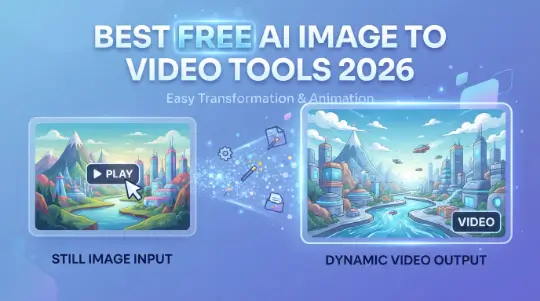
An AI image-to-video tool takes a still image and creates movement from it.
You provide an image and usually describe what should happen. For example, you might upload a picture of a car and write, “The camera slowly moves around the car while sunlight reflects across the body.”
The AI analyzes the image and generates frames that connect the starting picture to the movement described in the prompt.
The image provides the visual foundation, while the prompt tells the model what should change over time.
This is different from traditional animation. You do not have to manually move every object, create keyframes, or animate a camera. The AI handles much of that work automatically.
Why Image to Video Has Become So Popular in 2026
The biggest advantage is simplicity.
A creator can generate a still image, upload it to an AI video platform, describe the desired movement, and receive a short video within minutes.
This workflow is useful for many types of content. A photographer can animate a landscape. A small business can create a product advertisement. A YouTuber can turn an illustration into an intro sequence. A social media creator can make an ordinary photograph feel much more dynamic.
AI video has also become better at understanding camera instructions. Instead of simply asking an image to “move,” you can describe a slow zoom, camera orbit, tracking shot, push-in, pull-back, or subtle character movement.
That makes image-to-video particularly useful when you already have the visual style you want.
Best Free AI Image to Video Tools 2026
1. Google Flow
Google Flow is one of the most interesting options for people looking for a free way to experiment with AI video in 2026.
Flow is built around Google’s generative models, including Veo 3.1, and supports workflows such as Frames to Video. This means an image can become the starting point for a generated video rather than requiring you to create the entire scene from text.
Google currently lists a free option that provides daily Flow credits. The free tier includes access to Veo 3.1 and tools for text-to-video, Frames to Video, video extension, and other creative workflows. Availability and limits can vary by region and account.
What makes Flow particularly interesting is that it is designed more like a creative workspace than a simple video generator. You can work with images, video scenes, characters, and other creative elements in one environment.
For someone who wants to experiment with cinematic AI video without immediately paying for a subscription, Flow is worth testing.
What Google Flow Is Good For
Google Flow works well for cinematic scenes, storytelling, visual experiments, and projects where you want more than a simple animation.
It is also useful when you want to experiment with different shots instead of generating one isolated clip.
The platform’s current tools include Frames to Video, video extension, scene-building features, and Veo 3.1 generation.
2. Runway
Runway remains one of the most recognizable names in AI video creation.
Its current Gen-4.5 model supports both text-to-video and image-to-video generation. Runway says Gen-4.5 can follow detailed camera choreography, scene instructions, timing, and atmospheric changes. It supports image inputs and several aspect ratios.
The free plan is useful for testing the platform. Runway currently provides 125 credits as a one-time free allocation. Those credits do not expire, but they also do not refresh after being used. Free generations include a Runway watermark, and the selection of models available to free users can change over time.
That makes Runway particularly good for beginners who want to test professional AI video workflows before deciding whether they need a paid plan.
One important point is that “free” does not mean unlimited. If you plan to generate many versions of every image, you can use credits quickly.
How to Get Better Results With Runway
Start with a strong image. If the original picture has unclear objects, distorted hands, strange faces, or a complicated background, animation can make those problems more noticeable.
Your prompt should focus mainly on motion.
Instead of describing everything already visible in the image, explain what should move.
For example:
“Slow cinematic camera push toward the subject. Hair moves gently in the wind while the background remains stable. Natural sunlight shifts slightly across the scene.”
That gives the model a much clearer animation instruction.
3. Pika
Pika is another popular choice for creators who want to experiment with image-to-video generation.
Its current platform includes several creative tools and models. Pika’s pricing page shows a free plan, although the free tier does not provide a normal monthly credit allowance and instead works through available packs. The platform also lists image-to-video-related features among its tools.
Pika is especially interesting for social media creators because it focuses heavily on creative transformations and short-form video effects.
If your goal is not necessarily to create a serious cinematic sequence but to make an image more entertaining, Pika can be a useful option.
It is worth experimenting with different effects rather than expecting every generation to look like a traditional film shot.
4. Luma AI
Luma is another strong name in AI video generation.
One important update for 2026 is that Luma’s current video model is Ray3.2, while older references to Dream Machine may refer to previous generations of the platform. Luma’s official information identifies Ray as its current video-generation system.
Ray3 supports image-to-video workflows and focuses heavily on visual quality, motion, consistency, and cinematic control.
Luma also provides a free way to test its creative tools, although free usage is limited. Its current documentation explains that Ray3 and related generation options use credits, while different resolutions and modes consume different amounts.
Luma can be particularly interesting when you want subtle cinematic motion rather than exaggerated effects.
For example, a portrait can be given a gentle head movement, natural blinking, moving hair, or a slow camera push.
5. Hailuo AI
Hailuo AI is another tool worth trying if you want to animate still images.
The platform currently supports image-to-video workflows and also provides access to multiple video models through its broader video generator. Hailuo describes image-to-video as a process where the uploaded picture provides the visual foundation while the prompt describes what happens next.
This makes it useful for beginners because the workflow is easy to understand.
Upload an image, describe the motion, generate the clip, and refine the prompt if the result is not quite right.
Hailuo also publishes examples showing how a single image can be transformed into a short social media video. Its current guidance notes that some simple workflows can fit within free-trial credits.
Which Free AI Image to Video Tool Should You Use?
There is no single tool that works perfectly for every creator.
Your choice depends on the type of video you want to make.
If you want a broad creative workspace and access to Google’s latest video technology, Google Flow is worth exploring.
If you want a well-established creative platform with a clear free trial, Runway is a strong starting point.
If you prefer fun effects and short social media content, Pika can be a good fit.
If cinematic motion and image-to-video control are your main priorities, Luma is worth testing.
If you want a straightforward workflow and access to several current video models, Hailuo is another useful option.
The best approach is to take the same image and prompt and test it across two or three platforms. This gives you a much better idea of which model handles your particular subject.
How to Turn an Image Into a Video
The basic process is almost the same across most platforms.
First, choose a high-quality image. A clear image with a strong subject usually produces better results than a low-resolution or heavily distorted picture.
Next, upload the image to the image-to-video section of your chosen tool.
Then describe the movement.
This is where many beginners make a mistake. They write a long paragraph describing the image even though the AI can already see it.
Instead, focus on movement.
For example:
“A gentle breeze moves the leaves. The camera slowly pushes forward while sunlight creates soft highlights. The subject remains still and natural.”
After generating the first version, watch the entire clip before changing your prompt.
You may notice that the camera moves too quickly, the subject changes shape, or the background becomes unstable. Adjust the prompt based on what actually happened.
Start With Short Clips
Short generations are usually easier to control.
A five-second clip may be enough for a social media post, website background, advertisement, or transition.
Longer videos require the AI to maintain consistency for a longer period, which can increase the chance of visual errors.
Instead of asking for one long video, create several short shots and combine them during editing.
This approach also gives you more creative control.
How to Write Better Image-to-Video Prompts
You do not need complicated language.
A good prompt can be short and specific.
Think about five things: subject movement, camera movement, environment movement, speed, and style.
For example:
“A woman stands beside a window while soft sunlight moves across her face. Her hair moves gently in the breeze. The camera slowly pushes in. Natural cinematic motion, realistic lighting.”
This is better than simply writing “make this image into a beautiful video.”
The second prompt gives the AI much more useful information.
Use Camera Directions Carefully
Camera movement can dramatically change the result.
A slow push-in creates a different feeling from a fast zoom. A camera orbit creates a different result from a static shot.
Common instructions include:
“Slow camera push-in.”
“Gentle camera pull-back.”
“Camera slowly moves from left to right.”
“Subtle handheld movement.”
“Slow orbit around the subject.”
“Static camera with natural subject movement.”
Try one or two movements at a time. Too many instructions can make the result unpredictable.
Common Problems With AI Image to Video
AI video generation is impressive, but it is not perfect.
One common issue is character inconsistency. A person’s face may change slightly between frames, especially when there is significant movement.
Hands can also become distorted.
Another issue is unwanted camera movement. If you ask for too many things at once, the model may move the camera aggressively.
Background objects can also change unexpectedly.
The best way to reduce these problems is to use a clean source image and simple motion instructions.
When the first generation fails, don’t completely rewrite everything. Change one part of the prompt and try again.
Free Does Not Always Mean Unlimited
This is one of the most important things to understand when searching for the best free AI image to video tools 2026.
Most platforms use some kind of credit or usage system.
A free account may give you daily credits, one-time credits, limited generations, lower resolution, slower processing, or watermarked videos.
For example, Runway’s current free plan provides a one-time 125-credit allocation, while Google Flow lists 50 daily credits on its free tier. Pika’s current free plan uses a different system and does not list a standard monthly credit allowance.
These policies can change, so always check the current pricing page before building a large project around a free tier.
Are Free AI Videos Good Enough for YouTube?
Yes, they can be.
For short-form content, experiments, intros, backgrounds, visual storytelling, and social media posts, free generations can be perfectly useful.
However, professional projects may require higher resolution, commercial rights, more credits, faster generation, or no watermark.
That is where paid plans become more useful.
If you are just learning, there is no reason to pay immediately. Start with free credits, learn how image-to-video prompting works, and decide later whether the extra features are worth the cost.
How to Make AI Image-to-Video Content Look More Real
The source image matters more than many people realize.
Start with a high-quality image that already has good lighting and a clear subject.
Then choose realistic movement.
A person standing still does not need dramatic body movement. A landscape does not need the entire camera to spin around.
Small movements often look more believable.
For example, a portrait can use blinking, breathing, hair movement, and a slow camera push.
A landscape can use moving clouds, trees moving in the wind, water movement, and a gradual camera shift.
A product image can use a slow rotation, changing reflections, or a controlled camera movement.
The goal is not to make everything move. The goal is to make the scene feel alive.
Best Free AI Image to Video Tools 2026 for Different Users
For beginners, Google Flow, Runway, Pika, Luma, and Hailuo are all worth testing because they provide relatively accessible workflows.
For social media creators, tools that offer quick generations and creative effects can be more useful than tools designed primarily for cinematic production.
For photographers, image-to-video tools are useful for adding subtle movement to existing photographs.
For online businesses, animated product images can make advertisements and social posts more engaging.
For YouTubers, short AI-generated clips can work as intros, transitions, background scenes, or visual explanations.
For artists, AI video tools can turn illustrations and concept art into animated scenes without requiring traditional animation software.
Final Thoughts
The best free AI image to video tools 2026 have made video creation much easier than it was only a few years ago.
You no longer need advanced animation skills to turn a still picture into a moving scene. With the right image and a simple motion prompt, tools such as Google Flow, Runway, Pika, Luma, and Hailuo can produce impressive short videos.
The important thing is to understand the difference between free access and unlimited access. Most platforms provide some form of restriction, whether it is credits, daily limits, watermarks, resolution limits, or access to only certain models.
For beginners, the smartest approach is to experiment before paying. Take one good image, use the same prompt on several platforms, and compare the results.
You will quickly learn which tool matches your style.
AI video generation is still developing rapidly, and the tools available in 2026 are already capable of producing results that would have required considerably more time and technical knowledge in the past. The technology will continue to change, but the basic workflow remains simple: start with a strong image, describe believable movement, generate a short clip, and refine the result until it looks right.


[…] example, a creator might start with a written idea, generate an image, turn that image into a short video, add movement, and then create supporting audio. The exact features available depend on which Zorq […]